
Photo Start
A fun, fair way to pick a starting player for any game.
Photo Start is a utility for selecting a random starting player from a group. The app uses your phone's camera to scan and recognize faces, then randomly selects one person from the group.
Whether you're playing board games, card games, or any activity where someone needs to go first, Photo Start provides a fair, random selection. The app runs a brief animation sequence before displaying the selected player.
Getting Started - The Basic Flow
Step 1: Scan Yourself (Front Camera)
When you first open Photo Start, the front camera activates. Hold your phone up in portrait mode and position your face in the center of the screen. A colored ring appears around your face when the app detects it.
By default, the app waits for you to tap the Start button to proceed. This gives you control over exactly when your face is captured. Once you tap Start, your selfie flies into the thumbnail gallery and the app switches to the back camera.
If you'd prefer to skip the selfie entirely, swipe left on the screen. After three seconds, an on-screen hint will appear to remind you: "Swipe left to skip taking a selfie."
If you prefer the app to proceed automatically as soon as it detects your face, you can enable Take starting selfie automatically in Settings.
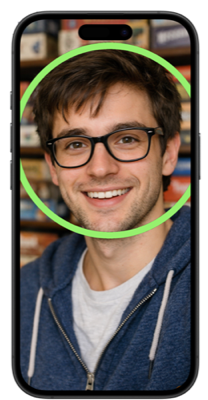
Step 2: Scan Your Players (Back Camera)
The app switches to the back camera. Point it at the people in your group. Each detected face gets its own unique colored ring—blue, green, purple, or other colors. These rings indicate which faces are currently being tracked.
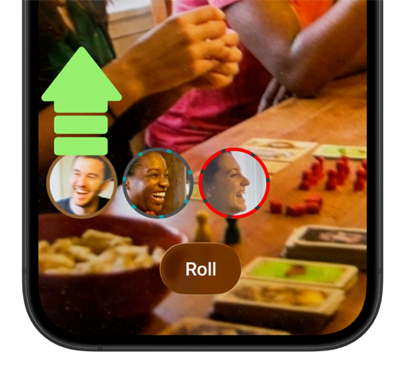
As faces are detected, small thumbnails appear at the bottom of your screen. This thumbnail gallery shows everyone who's been scanned. The app tracks faces continuously, so people can move around and their rings will follow them. You need at least 2 players to make a selection.
Rings may flicker or disappear briefly when someone turns their head, but the app maintains tracking once a face has been detected.
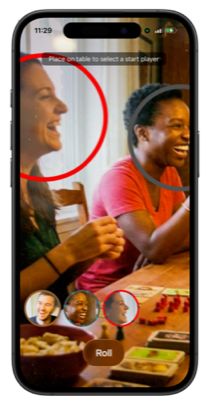
Step 3: Trigger the Selection
There are two ways to start the selection:
Lay your phone flat on the table (face-up, screen visible). Your phone's motion sensors detect this orientation and automatically trigger the selection.
Tap the Roll button on your screen. This does the same thing as laying the phone flat and works anytime during scanning mode.
You need at least 2 scanned faces before you can trigger a selection.
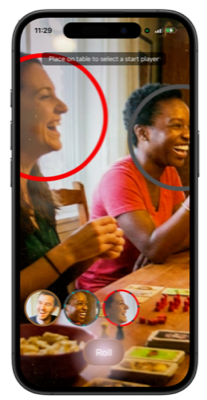
Step 4: The Selection Animation
The app displays a tunnel animation with expanding colored rings, waves, and particle effects. By default, the sequence takes about 5 seconds, but you can adjust this duration in Settings. Sound effects play during the animation.
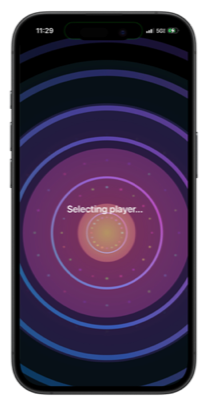
Step 5: The Winner Display
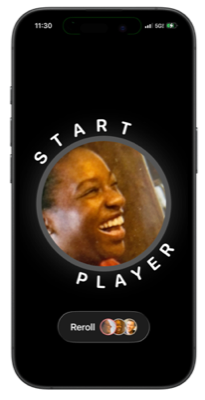
The selected player's face appears in the center of the screen with the words "START PLAYER" curved around it in a circle. The text is oriented to be readable from any angle around the device.
Your Options After Winning
Reroll to Pick Again
To select a different starting player from the same group, tap the Reroll button. The app runs the selection animation again using the same scanned faces. No need to re-scan everyone.
You can reroll as many times as needed. With larger groups (5 or more players), the button shows only the stacked face thumbnails without the "Reroll" label to keep things compact.

Reset and Start Fresh
To scan a different group of people, tap the Reset button. This clears all scanned faces and returns to the front camera.
You can also return your device to the upright position to go back to scanning mode if you need to add or remove people from the current group.
Managing Your Scanned Faces
Viewing the Face Thumbnails
The thumbnail gallery at the bottom of the screen shows all scanned faces. Each thumbnail displays the person's face with their unique colored ring. The gallery scrolls horizontally as you scan more people.
Delete a Face (Swipe-to-Remove)
To remove someone from the pool, swipe up on their thumbnail while in scanning mode. The face is removed from the gallery and won't be included in the selection. Note that you can't delete faces that are actively being scanned—those with an animated dot border around them. Move the camera away from that person first, then delete their thumbnail.
App Settings
To access Settings, tap the More button (three dots) in the upper right corner of the screen.
Selfie
Take starting selfie automatically — When enabled, the app will automatically capture your selfie and switch to the back camera as soon as it detects your face, without waiting for you to tap Start. When disabled (the default), you control the timing by tapping the Start button.
Animation Length
You can adjust how long the selection animation runs before revealing the winner:
- Short (3 seconds) — Quick selection for faster gameplay
- Medium (5 seconds) — Balanced animation length (default)
- Long (7 seconds) — Full dramatic effect
Help & Documentation
The Settings page includes a link to view this User Guide anytime you need a refresher on how to use Photo Start.
Pro Tips & Troubleshooting
Getting Better Face Recognition
Photo Start uses your phone's built-in face detection. The following can help improve quality:
Good lighting. Face detection works best in well-lit spaces. Natural light or bright indoor lighting helps the app detect faces clearly. Avoid heavy shadows or bright backlighting.
Get closer for better thumbnails. The app can detect faces from far away, but if someone's face is too small in the video preview, their thumbnail will look grainy. Position people closer to the camera so faces fill more of the frame for sharper thumbnails.
Use the gallery as a quality preview. Photo Start continuously updates face snapshots with better images as long as people remain in view. If someone's thumbnail looks blurry, keep them on screen for a few more seconds and the app will update it with a clearer image.
Clear visibility. Heavy shadows, hats, or sunglasses can block facial features needed for detection. If someone isn't being detected, have them remove sunglasses or adjust headwear.
Hold still briefly. Standing still for a second or two when first being scanned helps the app capture a clean snapshot.
Rescanning Someone's Face
To improve a fuzzy or dark thumbnail, swipe up to delete it, then scan the person again with better positioning or lighting. The app will capture a new image. Alternatively, keep the camera on someone for a few extra seconds and the app will automatically update their snapshot.
Minimum Requirements
You need at least 2 scanned faces before you can trigger a selection. If you try to start with fewer, the app will display a message indicating more players are needed.
Device Orientation & Flat Detection
Photo Start uses your phone's motion sensors for orientation-based triggers. Hold your phone upright (portrait mode) while scanning faces.
Laying the phone flat on a table (face-up, screen visible) triggers the selection automatically. Alternatively, the Roll button is always available and performs the same function.
For information about how Photo Start handles your data, see the Privacy Policy.